Email account setup in Mac OSX Mail (SMTP/IMAP)
Email clients, like Mail in Mac OSX, allow you to easily check your emails without Webmail (web-interface). This tutorial will help you to configure your Email accounts in Mac OSX ‘Mail’.
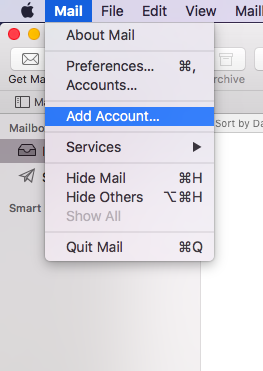
Step 1. Go to Mail > Add Account
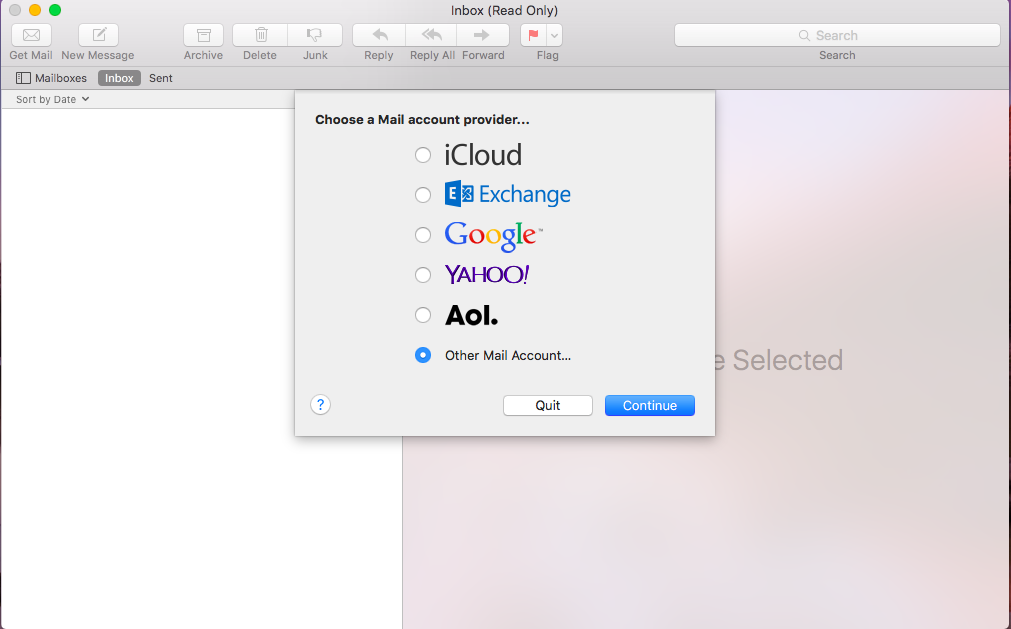
Step 2. In the Choose a Mail account provider window check the option Other Mail Account
Click Continue
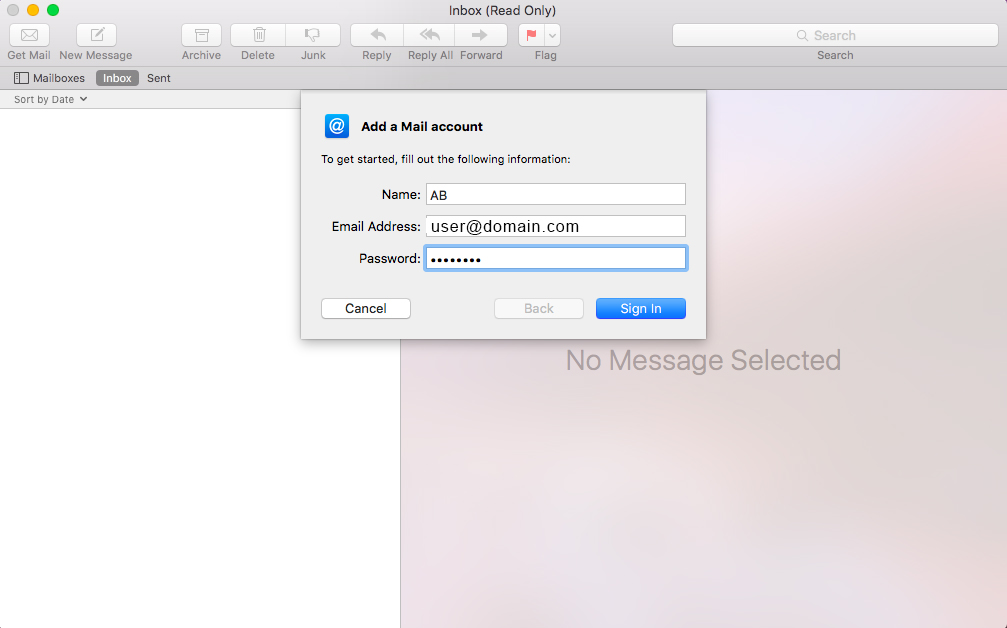
Step 3. In the Add a Mail Account window enter the following details:
- Name: the name you would like the recipients of your emails to see.
- Email Address: your full Email address.
- Password: password for your Email account (make sure you do not have blank spaces in it).
Once all the fields are filled, click Sign In
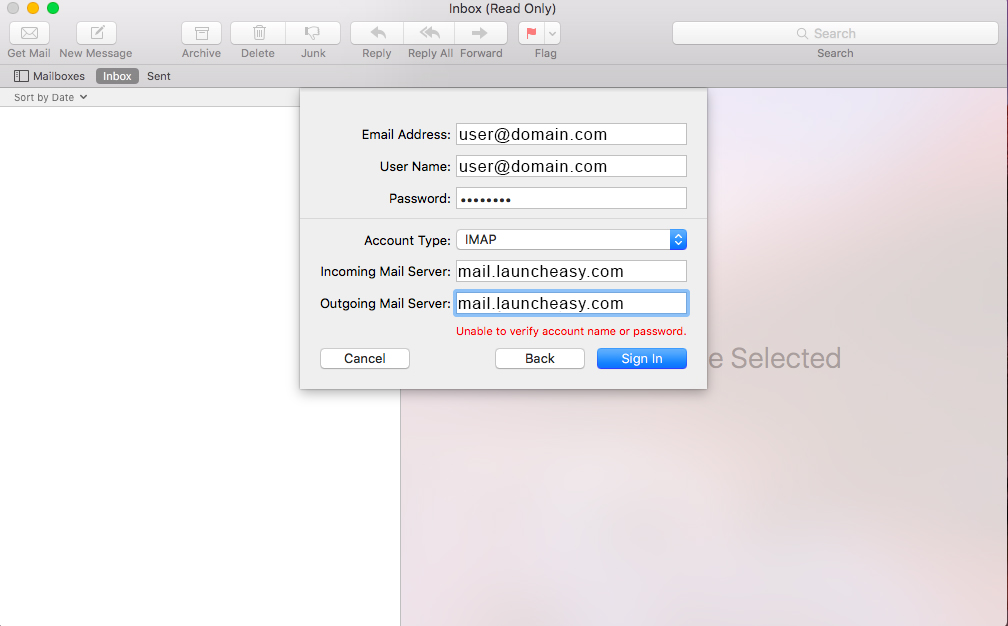
Step 4. If setup fails for some reason (lack of autoconfig or autodiscovery setup being one, see here to set it up), please try to follow the steps from scratch or configure the settings manually by entering the following details:
- Email Address: your full Email address.
- User Name: your full Email address.
- Password: password for your Email account (Make sure you do not have blank spaces in it).
- Account Type:
IMAP - Incoming Mail Server:
mail.launcheasy.com - Outgoing Mail Server:
mail.launcheasy.com
Once all the fields are filled, click Sign In
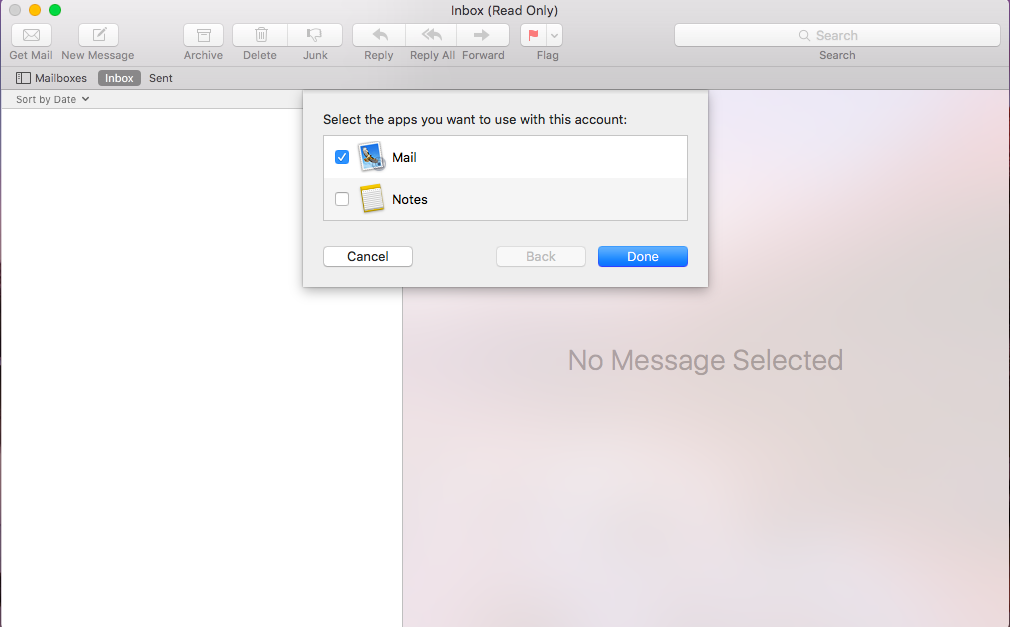
Step 5. Click Done to finish setting up Mail.